Product link
Size
Embed text
Link style
Generate code
Copy code
How to embed a view
- Visit www.anatomy.tv and log in as you normally would.
- Open any HTML5 product and select any view and any structure you like. (Please note our Real-time products are not currently compatible with this functionality).
- From the left toolbar click on the Embed cloud icon (see left).
- Select from the options available (see left) and click Generate code.
- If happy with your current selection and options, click Copy code.
- Now you can paste the copied code into your LMS/VLE in the same manner you would for embedding a YouTube video.
- Open your LMS/VLE to view the content.
- We recommend only embedding a few views per page. Whilst it’s possible to embed lots of views in one page you might find performance is adversely affected.
There are three controls in the panel:
small, medium and large.
You can also change the size of the embedded view manually by altering the code itself:
<iframe src="http://stage.anatomy.tv/gotoview.aspx?embeddedcode=C5E6E5" width="960" height="720" frameborder="0"></iframe>
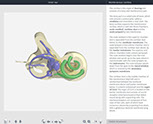
Select this option if you would like to include structure text with your embedded view. The text will sit alongside the image and update as the user selects different structures, just as it does in the product
with embed text
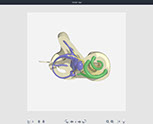
Select the style of link from the drop-down list according to where you will be embedding your view.
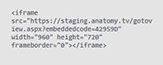
Once you are happy with the view you have selected, click the generate code button.
Either select the code from the box above and copy, or use the copy code button.
Selecting the product link option will add a small button to the top of the embedded view. Selecting this button will launch the full version of the product at the same image you have embedded.
